 Neux
Tutorial: make a character move
You will write a short C# script that walks a capsule around with the keyboard or a gamepad and makes it jump. It needs the .NET SDK 8 or later, which compiles the scripts.
1. Set up the object
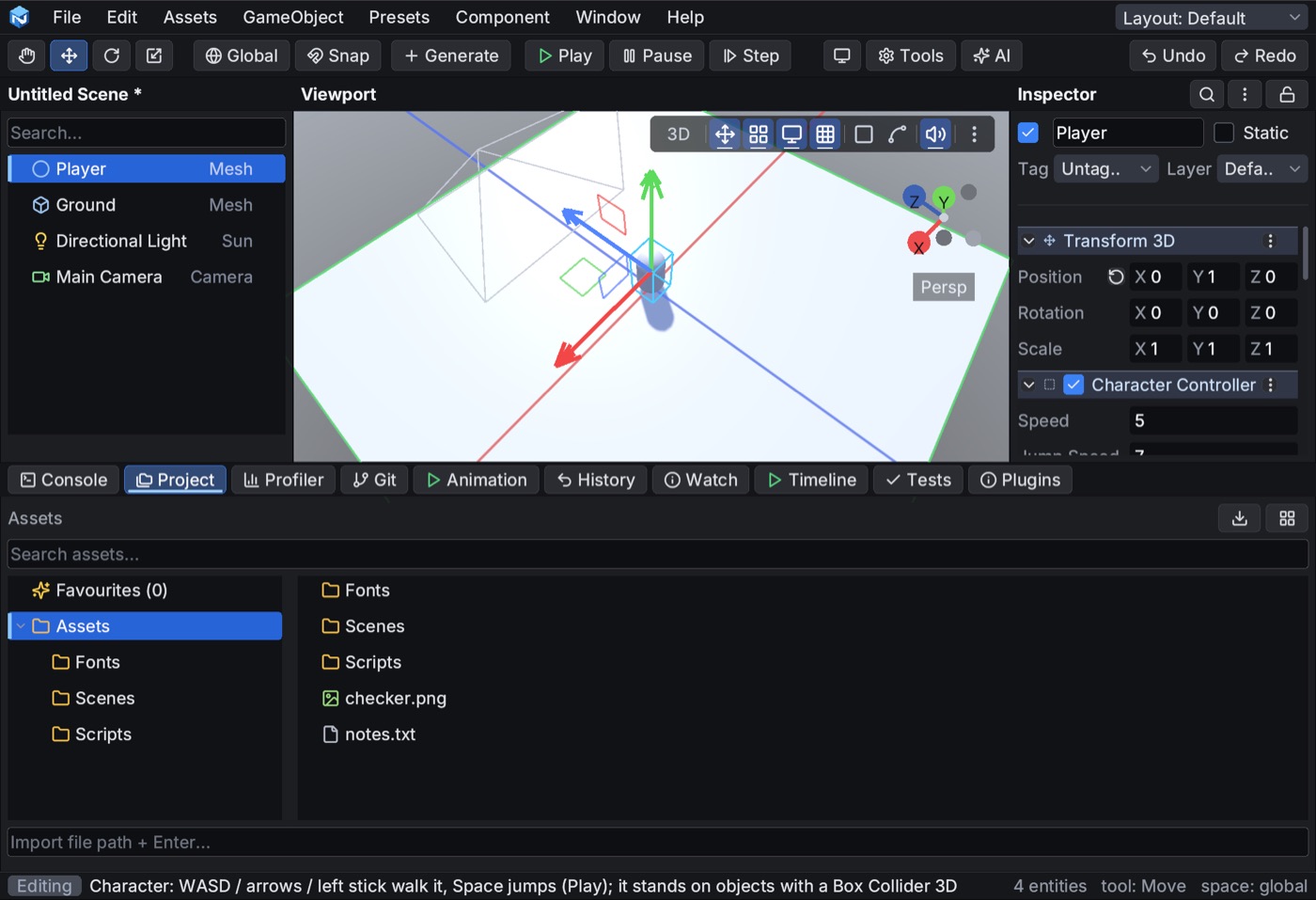
- In a 3D project, add a Capsule from GameObject > 3D Object.
- Select it and use Add Component to add a CharacterController.
- Put it just above the ground so it can land.
2. Write the script
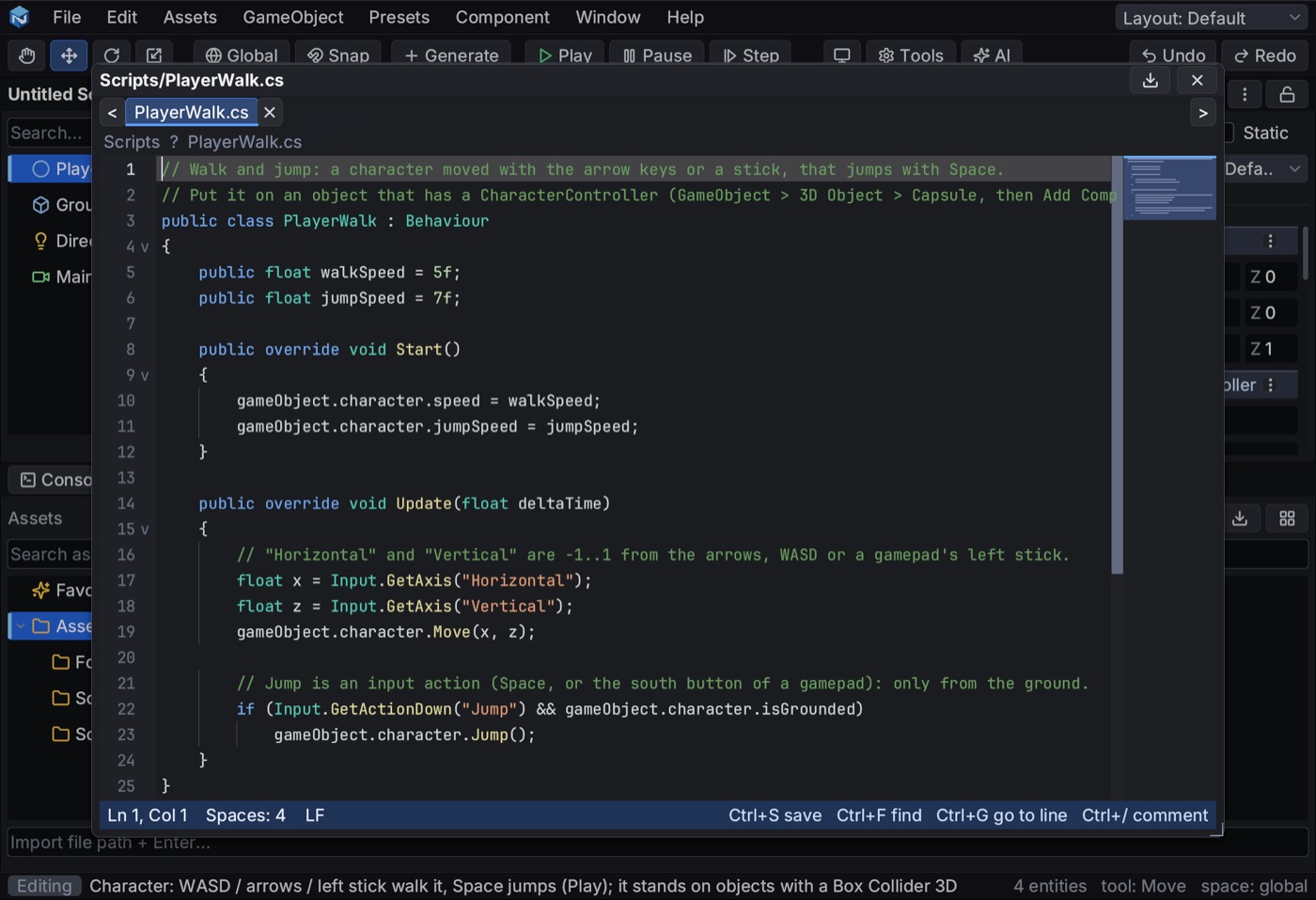
In the Project window create a new C# script called PlayerWalk (or save the file below as Scripts/PlayerWalk.cs). This is the same script as the first one in the cookbook:
public class PlayerWalk : Behaviour
{
    public float walkSpeed = 5f;
    public float jumpSpeed = 7f;

    public override void Start()
    {
        gameObject.character.speed = walkSpeed;
        gameObject.character.jumpSpeed = jumpSpeed;
    }

    public override void Update(float deltaTime)
    {
        float x = Input.GetAxis("Horizontal");
        float z = Input.GetAxis("Vertical");
        gameObject.character.Move(x, z);

        if (Input.GetActionDown("Jump") && gameObject.character.isGrounded)
            gameObject.character.Jump();
    }
}
Start runs once when the game starts; Update runs every frame and gets the time since the last one. Horizontal and Vertical are numbers from -1 to 1 from the arrow keys, WASD or a gamepad's left stick. Jump is Space or the gamepad's south button.
3. Add it to the capsule
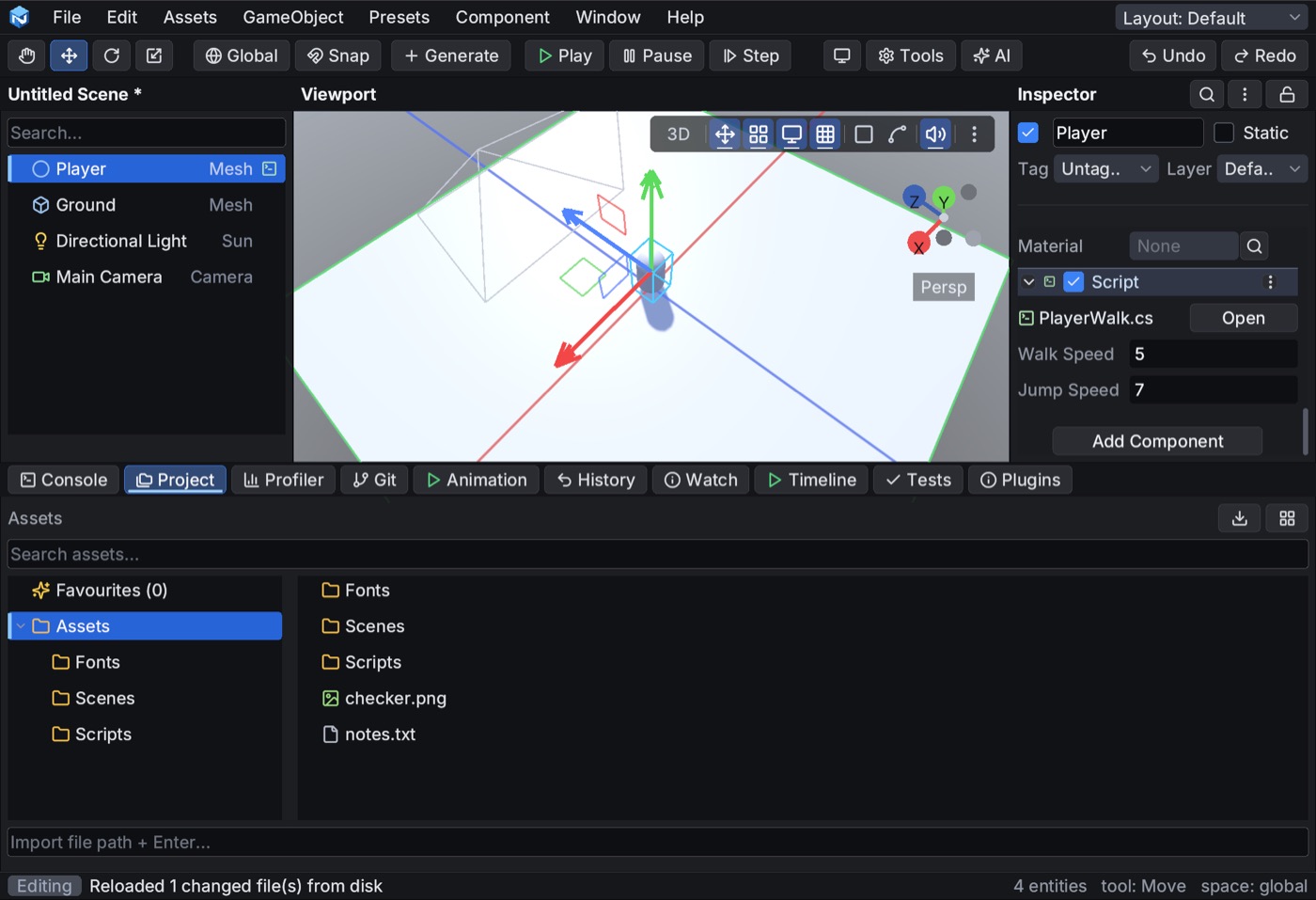
Select the capsule, press Add Component and pick PlayerWalk. Its two public fields, walkSpeed and jumpSpeed, appear in the Inspector: change them without touching the code.
4. Play
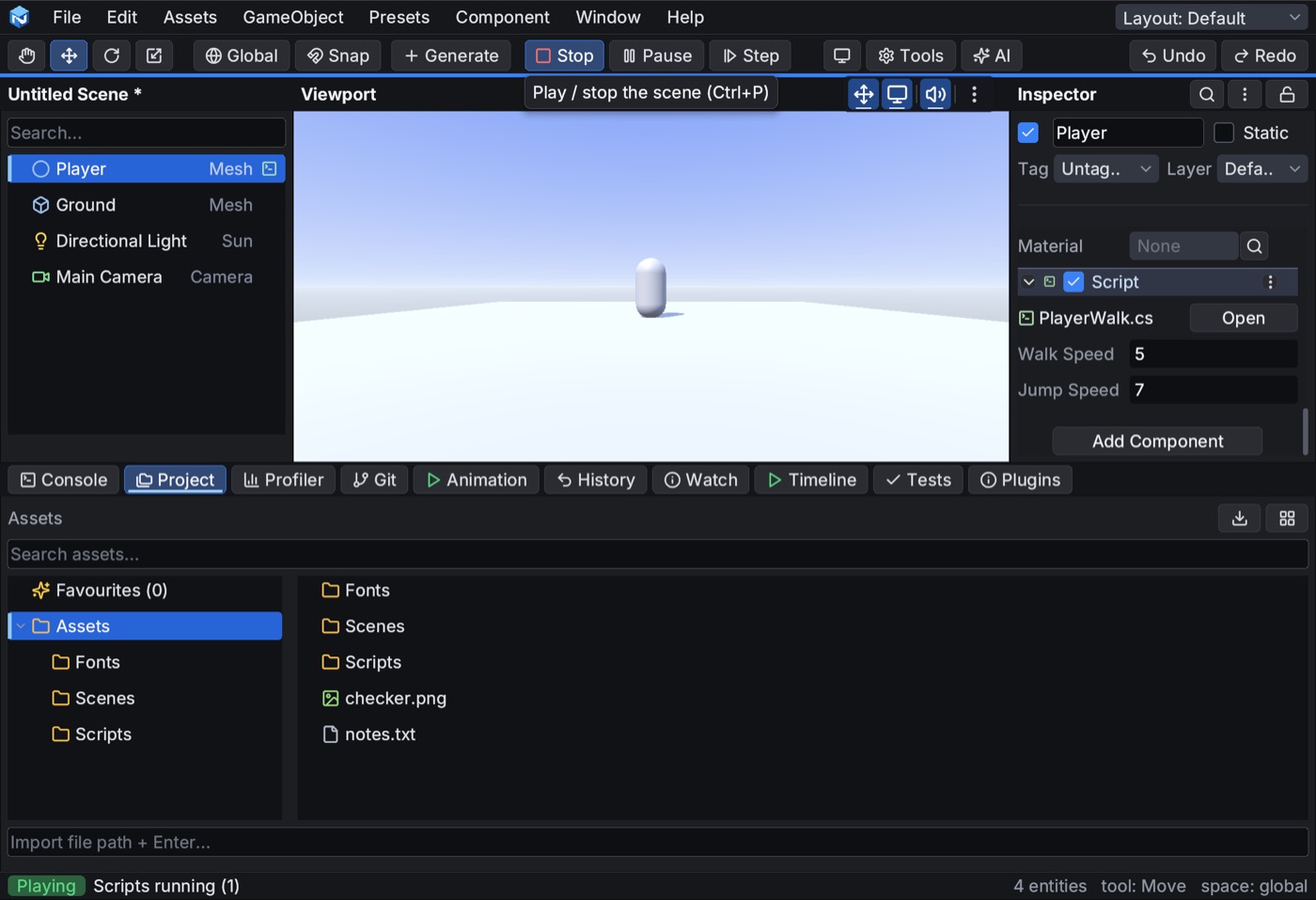
Press PLAY and walk. Compile errors show in the Console and on their lines in the code editor.
Every type used here is listed with an example in the scripting API. Next: animate the character, or collect coins.