 Neux
درس: المخرج: تحميل المرحلة التالية
الدخول إلى المخرج يحمّل المرحلة التالية في الخلفية بينما يمتلئ شريط، ثم تظهر حين تكون جاهزة.
1. الإعداد
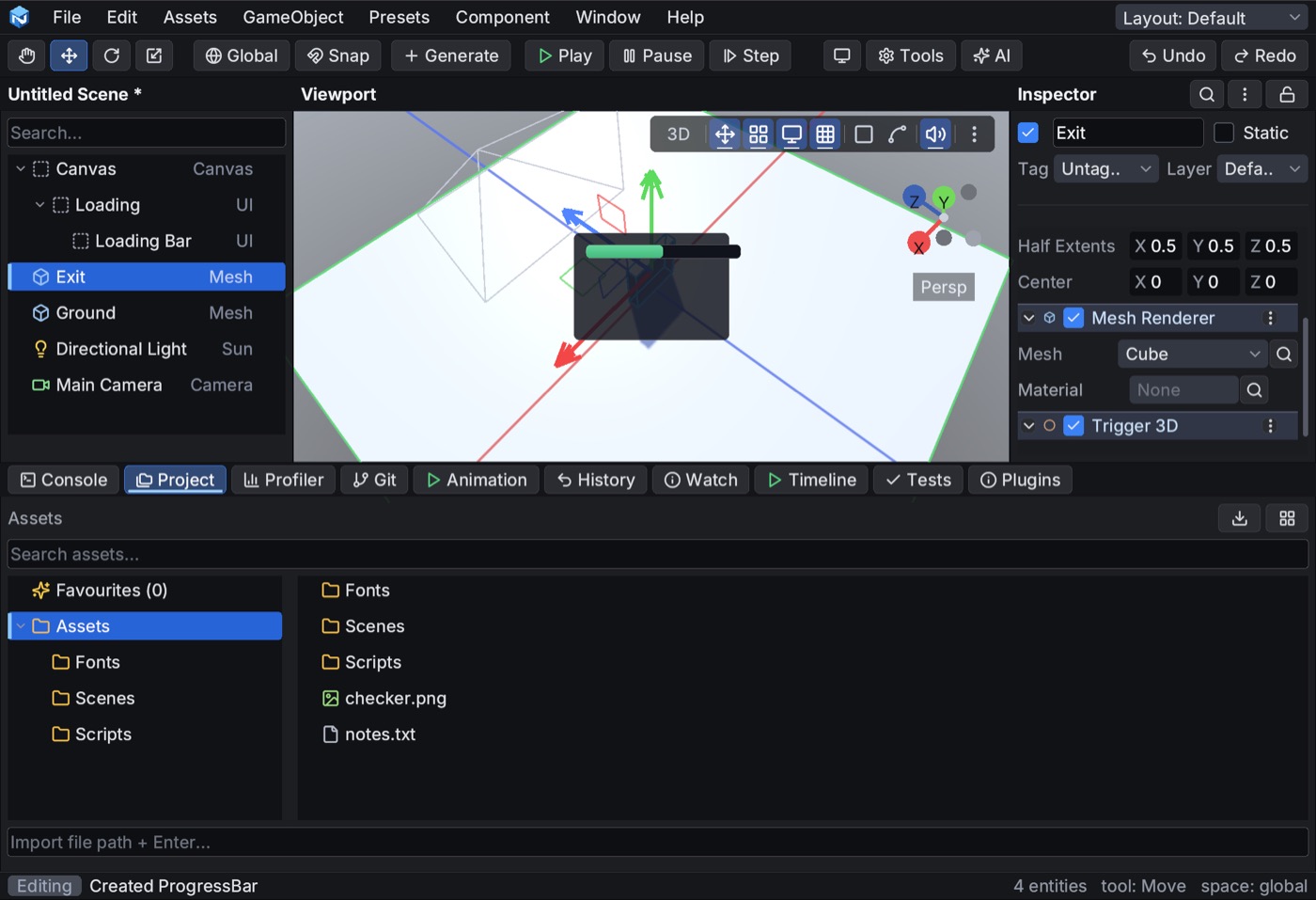
- ضع السكربت على كائن فيه Trigger3D في نهاية المرحلة.
- أضف لوحة من الواجهة باسم
Loadingفيها شريط تقدم باسمLoading Bar. - في File > Build Settings أضف المرحلتين إلى قائمة المشاهد.
2. السكربت
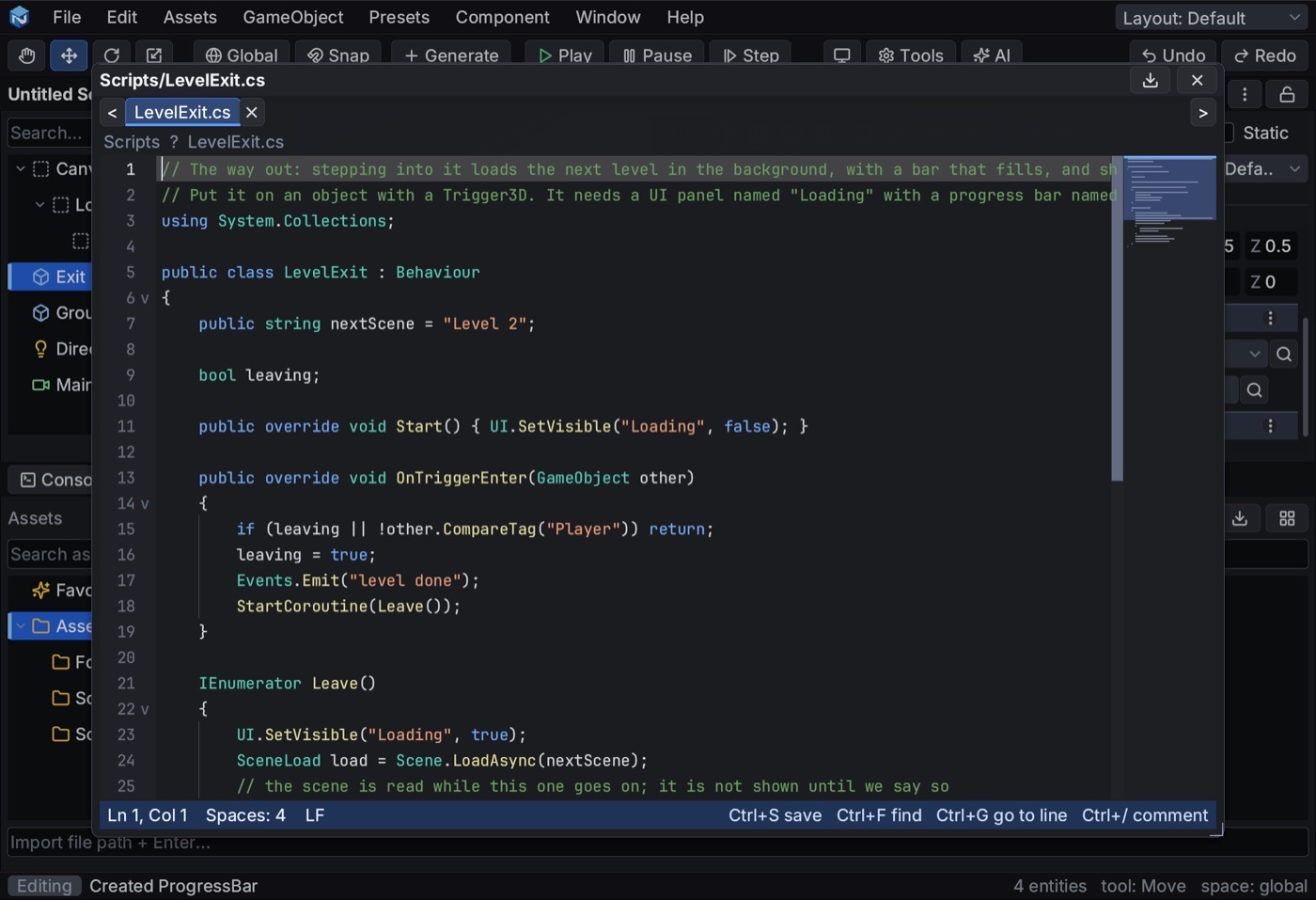
Scripts/LevelExit.cs
using System.Collections;

public class LevelExit : Behaviour
{
    public string nextScene = "Level 2";

    bool leaving;

    public override void Start() { UI.SetVisible("Loading", false); }

    public override void OnTriggerEnter(GameObject other)
    {
        if (leaving || !other.CompareTag("Player")) return;
        leaving = true;
        Events.Emit("level done");
        StartCoroutine(Leave());
    }

    IEnumerator Leave()
    {
        UI.SetVisible("Loading", true);
        SceneLoad load = Scene.LoadAsync(nextScene);
        // the scene is read while this one goes on; it is not shown until we say so
        load.allowSceneActivation = false;
        while (load.progress < 0.9f)
        {
            UI.SetValue("Loading Bar", load.progress);
            yield return null;
        }
        UI.SetValue("Loading Bar", 1f);
        yield return new WaitForSeconds(0.3f);
        load.allowSceneActivation = true;
    }
}
احفظه باسم Scripts/LevelExit.cs.
3. كيف يعمل
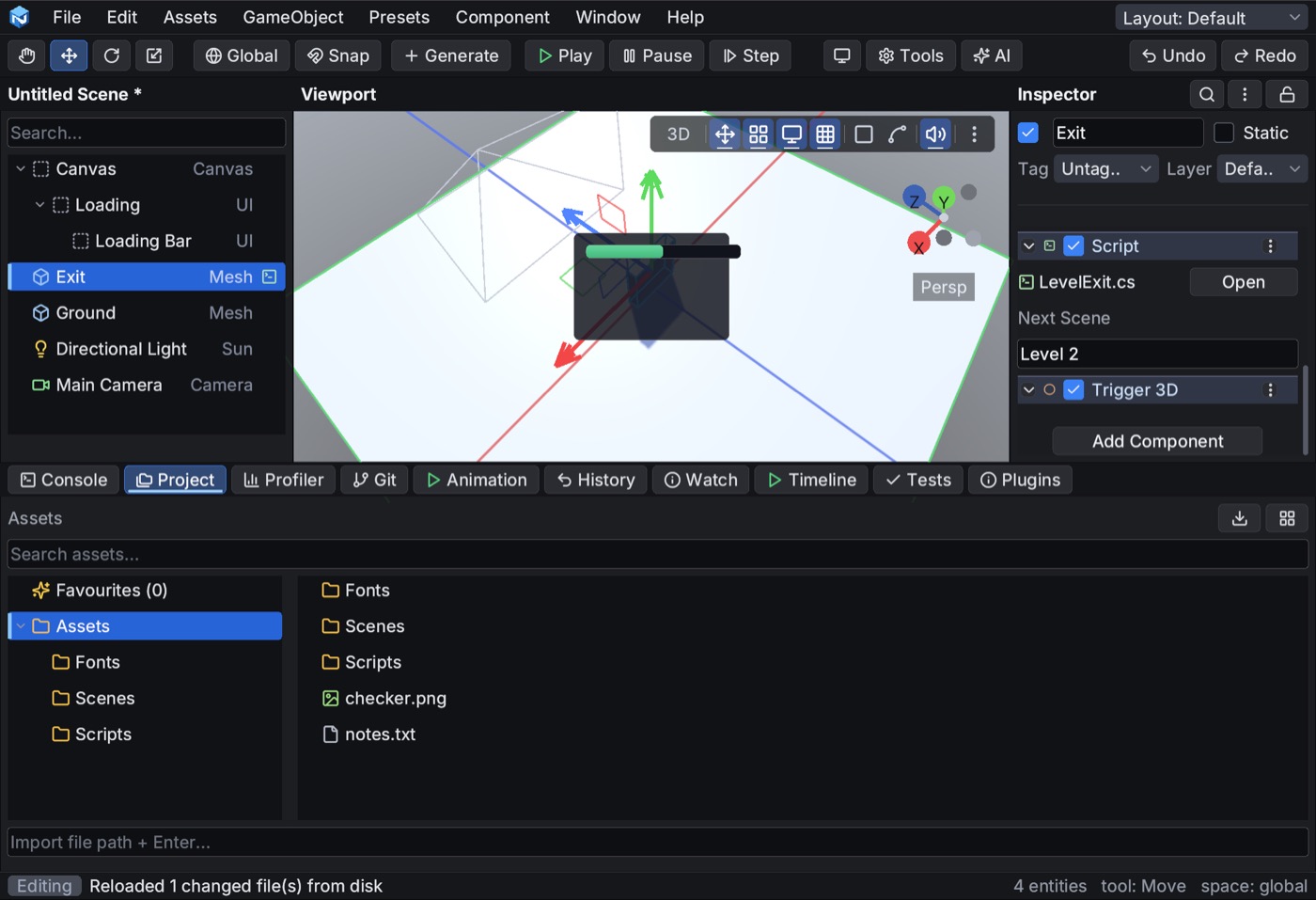
التحميل في الخلفية يعني ألا تتجمد اللعبة أثناء تحميل المرحلة التالية: يعرض الشريط التقدم، وتظهر المرحلة الجديدة حين تجهز. اضبط اسم المرحلة التالية في Inspector.
التالي: قائمة أزرار التحكم.